Just Air
Designing accessible, real-time air quality insights for urban communities.
Story
Over three months, I led a full accessibility and UX assessment of the JustAir air-quality dashboard, covering color contrast, structure, semantics, charts, navigation, and color-vision reliability. I audited the entire interface through WCAG 2.1 AA guidelines using Lighthouse, A11y, ChromeVox, keyboard-only flows, and four color-blindness simulations. This uncovered a wide range of issues across contrast, ARIA roles, heading hierarchy, form labeling, keyboard focus, and chart readability.
I then delivered a cohesive redesign strategy that improves clarity, legibility, and consistency without breaking the EPA-required AQI palette. This included a WCAG-compliant color system, simplified and unified chart styles, accessible line patterns, scaled-down axis density, pollutant-specific micro-charts, stronger semantic labeling, and a new wind-panel design that balances beginner readability with expert depth.
Role
UX Research
UX Design
Design Audit
Visual Design
Team
Solo Project
Timeline
August 2025 - December 2025
Methods
Competitive analysis
Generative interviews
Personas
User flows
Moderated usability testing
WCAG Testing
Accessibility Testing
Impact
3
reusable visualization systems created (chart pattern, pollutant detail & wind panel systems) that can scale to new monitors and cities.
80+
accessibility and usability issues identified, prioritized, and tied to concrete design changes
50%
increase in clearer primary actions by strengthening button contrast, labels, and hierarchy on key flows

Context & Scope
JustAir is a Michigan-based environmental startup working with Wayne County to deploy over 100 new air-quality monitors across 43 communities.
Their goal is to Bring hyperlocal air data to residents, especially in ALICE (Asset-Limited, Income-Constrained, Employed) and Opportunity Zone neighborhoods.
My role was as a UX Consultant for both JustAir and the CMSE 495 Capstone team at Michigan State University. I helped shape how data could be seen, trusted, and understood, instead of just displayed. That meant working with both data scientists and the JustAir dev team to translate complex environmental data into something that actually makes sense to a human at 9 AM with a cup of coffee.
The collaboration had two main goals:
Redesign JustAir’s core dashboard
Design a Wind Analysis Panel
Understanding Users & the Market


I started with an exploratory competitive analysis to understand how similar platforms approach these problems. Alongside that, I created two personas using insights gathered from Reddit discussions, Google searches, and community forums, since there wasn’t enough time to run full user interviews. (Reddit users, for better or worse, were very eager to share their opinions.)
I focused on understanding how other companies handle and present their environmental data, and used those observations to outline potential feature sets that align with JustAir’s mission. This process also helped me provide clearer direction and more informed insights to the student team working alongside me.
Competitive Analysis




Assumption Maps
Identifying Barriers
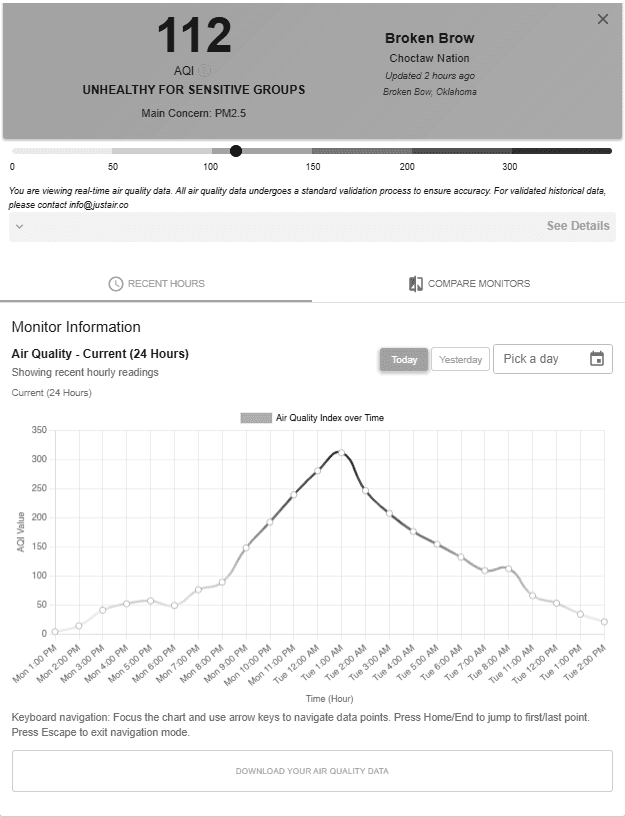
I used Google Lighthouse and Axe (A11y engines) to automatically evaluate the webpages against WCAG 2.1 accessibility standards. These tools helped me quickly spot accessibility gaps, usability issues, and any problem areas in the existing design, which essentially became the starting point for the entire design process.
After that, I moved into manual testing. As part of this, I did keyboard-only navigation tests and screen-reader checks using ChromeVox. I also performed WCAG contrast reviews and color-accessibility checks across the user dashboard. This combination of automated and manual testing helped me get a full picture of the accessibility barriers and where improvements were needed.
For each test, I followed the exact same interaction script:
Navigate to justair.app.
Choose a state → region → cluster → individual monitor.
Once the monitor sidebar opened, walk through every interactive element — dropdowns, graphs, date pickers, buttons, you name it.
Try changing graph dates, comparing monitors, downloading data, and using the calendar using only the keyboard. (The space bar is still recovering.)
Below is a quick summary of what I found.
WCAG Contrast Testing
1.
1.2:1
Aa
Aa
#B4FB9D / #FFFFFF
Map badge / Tiles on light green / Compare Monitors numeric chips
2.
1.6:1
Aa
Aa
FFFFFF / #F7C946
Yellow values on white
3.
1.72:1
Aa
Aa
#767676 / #25ABDE
Air Quality Map btn / Recent Hours header
4.
2.16:1
Aa
Aa
#B4FB9D / #25ABDE
Sign up
5.
2.35:1
Aa
Aa
#F5F5F5 / #25ABDE
See Details / Links on light cards
6.
2.64:1
Aa
Aa
#25ABDE / #FFFFFF
Primary links/buttons (Today, Compare, Remove Cluster)
7.
2.8:1
Aa
Aa
#4CAF50/ #FFFFFF
“Geoapify” green pin/badge
Manual & Automated Testing
Color Accessibility Testing
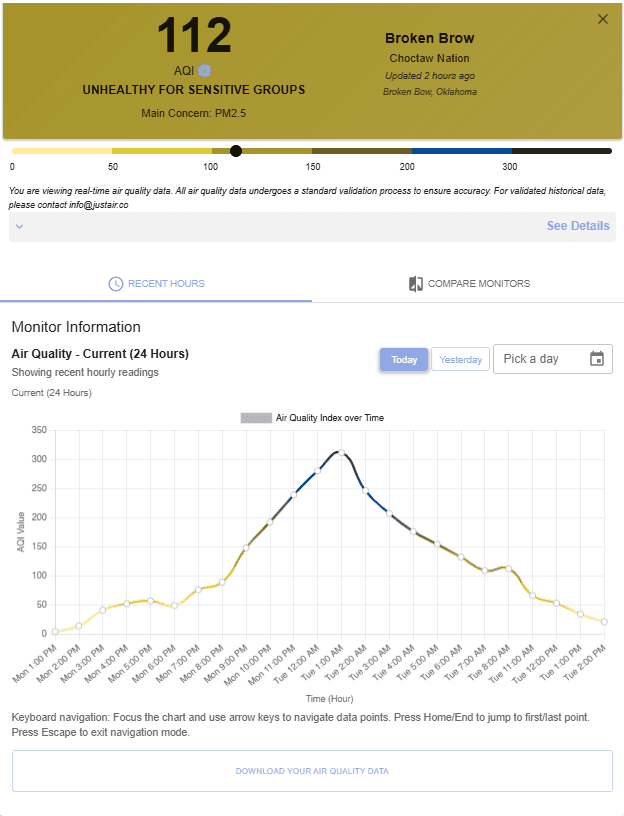
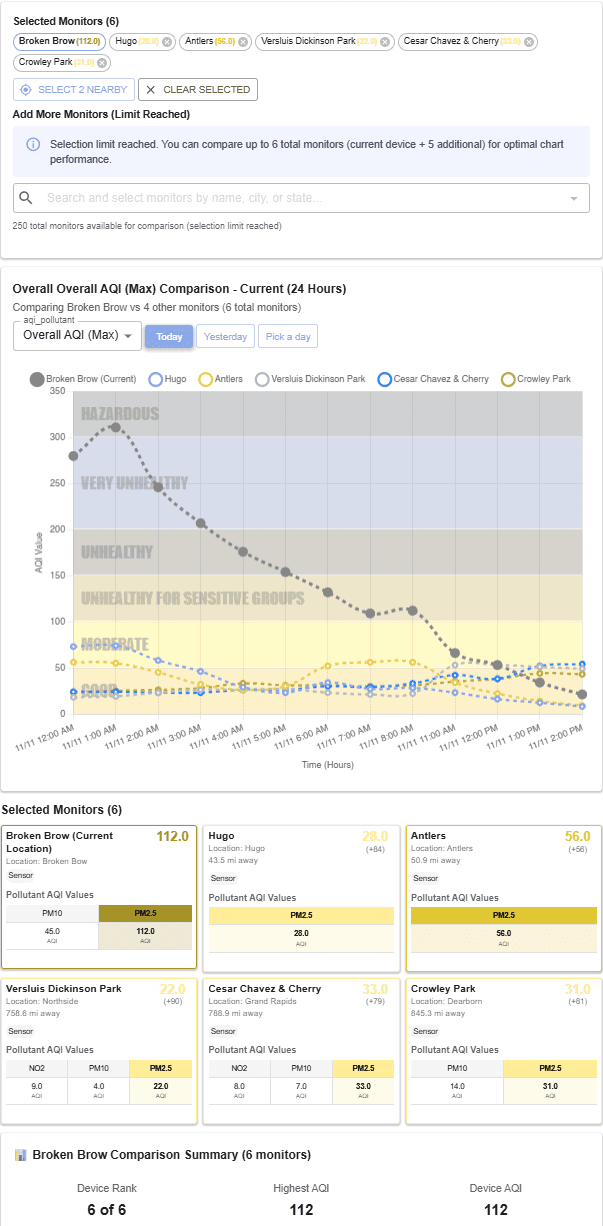
Protanopia
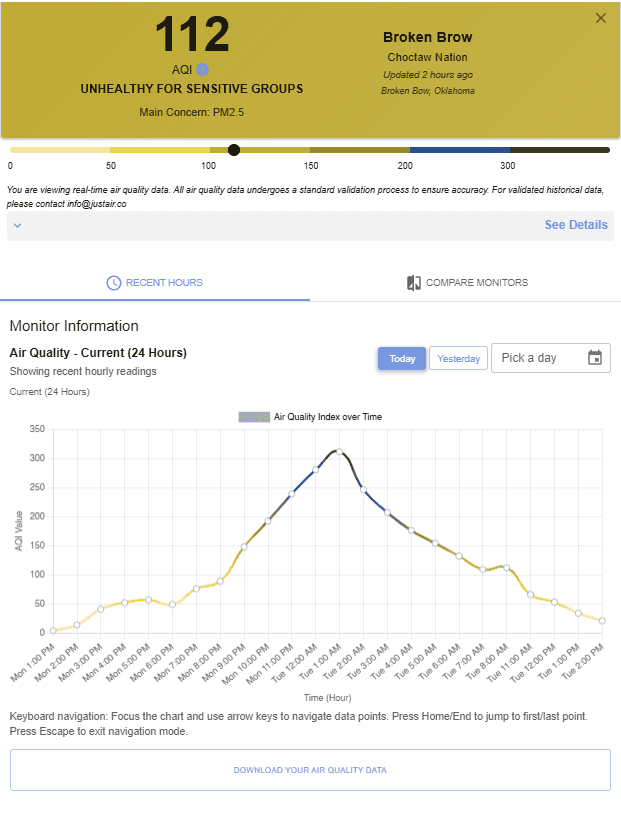
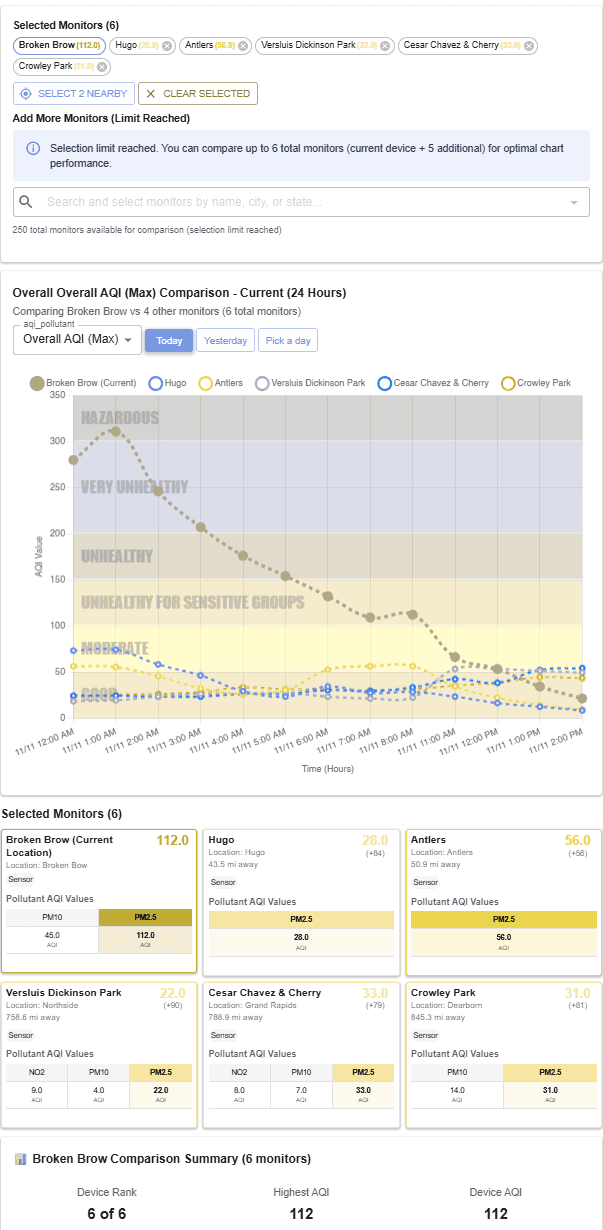
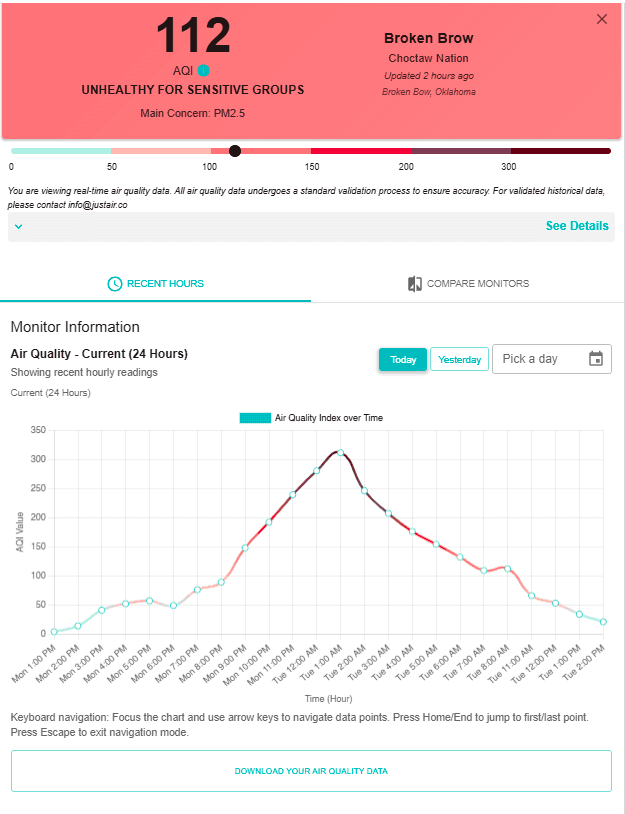
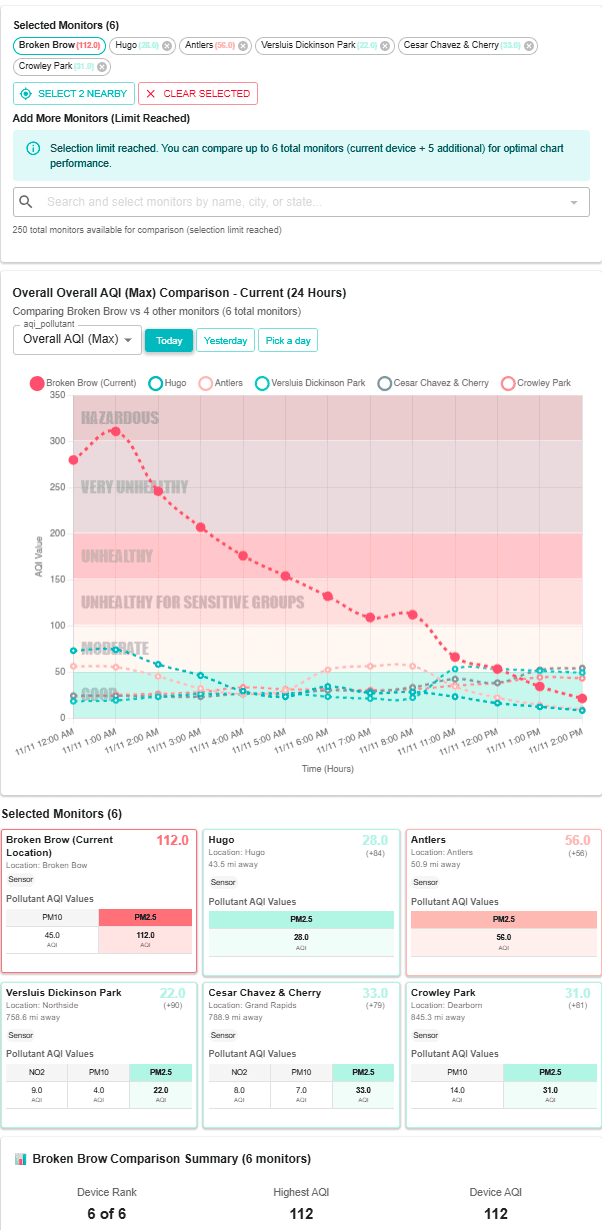
Deuteranopia
Tritanopia
Achromatopsia
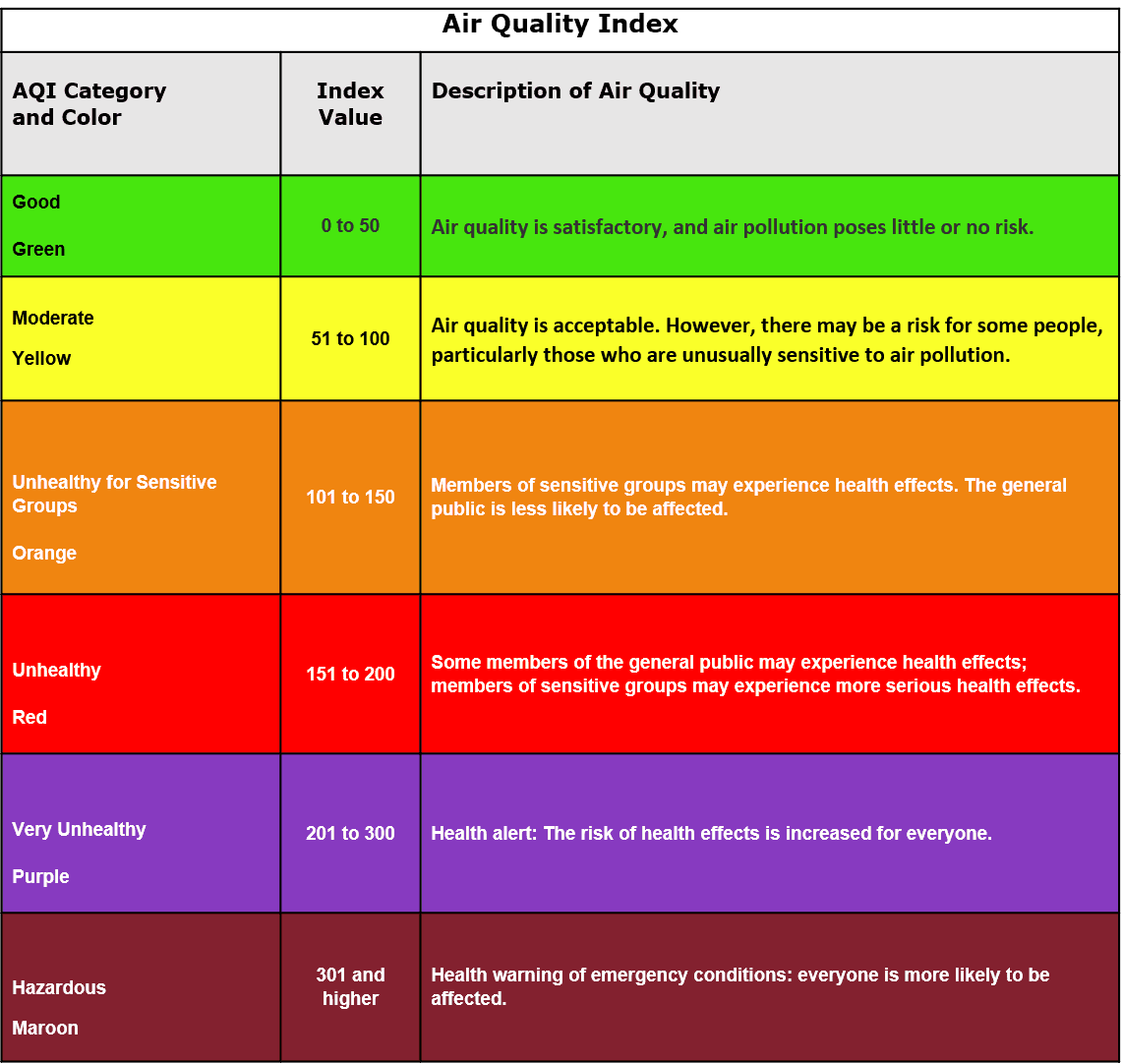
EPA verified palette
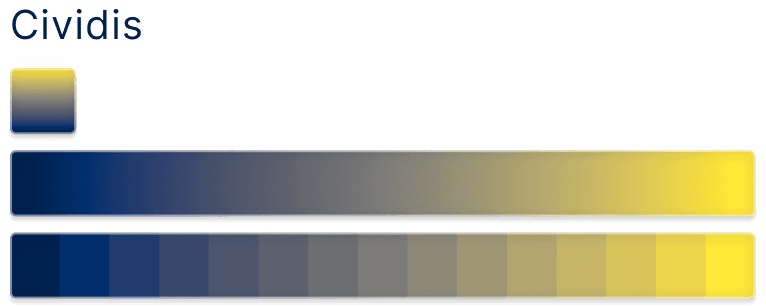
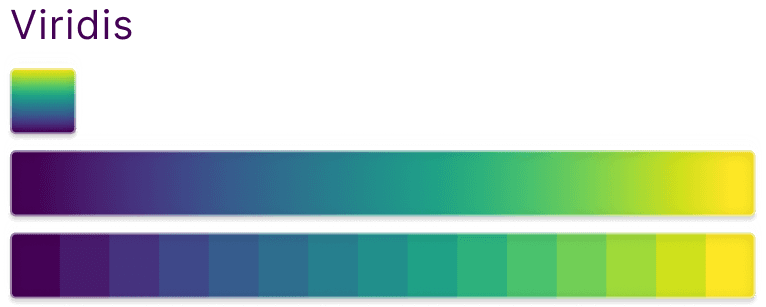
For color accessibility issues like these, and since the JustAir dashboard is very data-heavy, I would normally suggest using Cividis or Viridis color palettes. But we can’t use them here because the EPA color palette needs to stay the same for air quality reporting. So, we need to find accessible alternatives that still follow the EPA guidelines.
UX Analysis
After the accessibility testing, I wanted to be certain I understood all the issues within the dash. Automated tools can’t really capture contextual problems or the more nuanced difficulties users may run into.
I broke the user-facing monitor dashboard into three sections:
The pollutant row
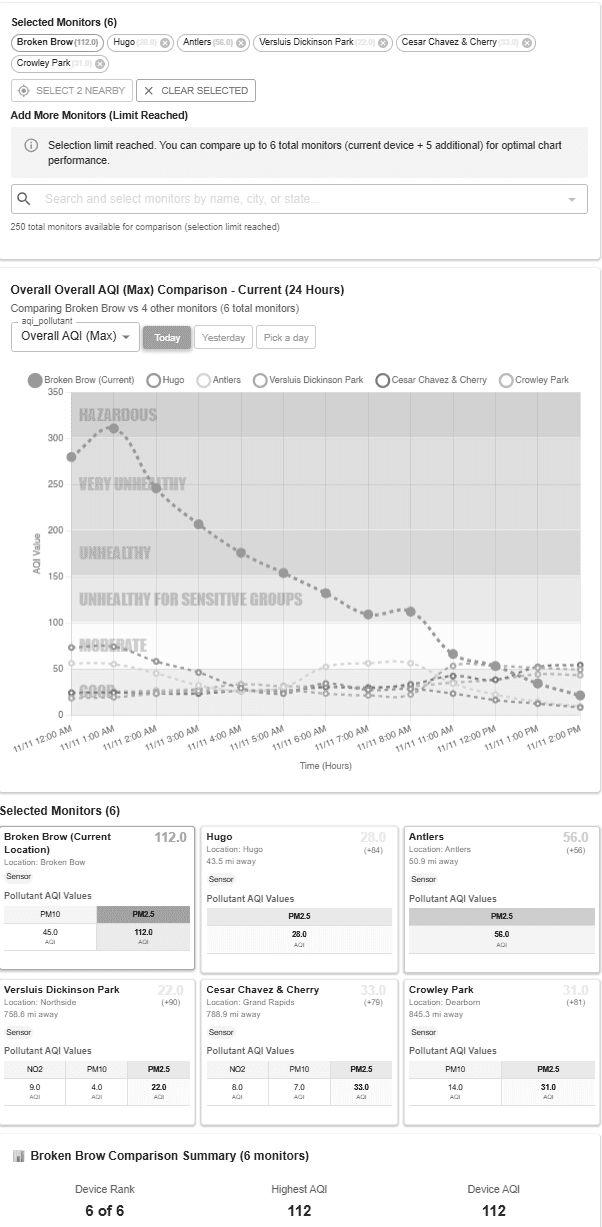
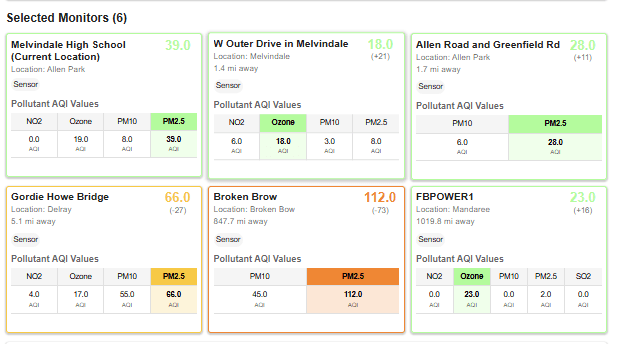
The “compare monitors” tab
The graphs
This lets me understand how each section contributes to the overall user experience, identify where friction occurs, and see how well the interface supports different user tasks.
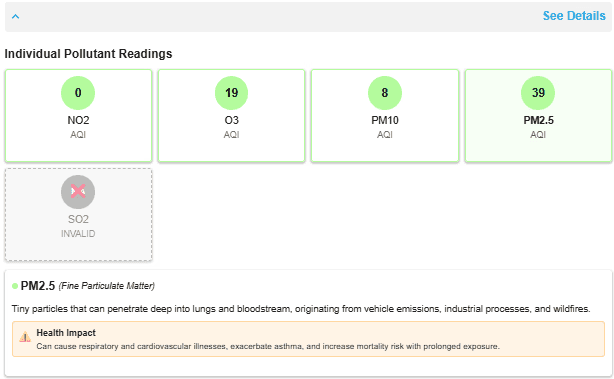
Pollutant Row
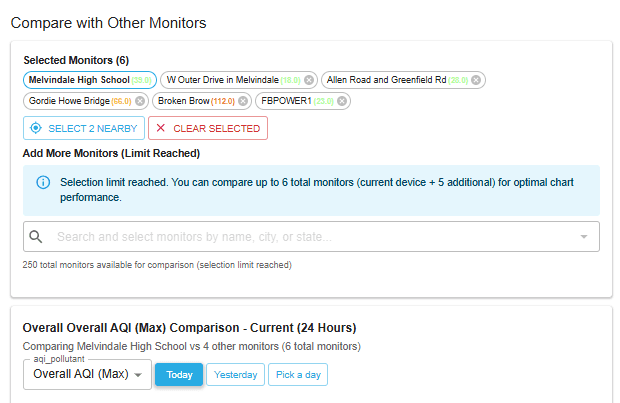
Compare Monitors Tab
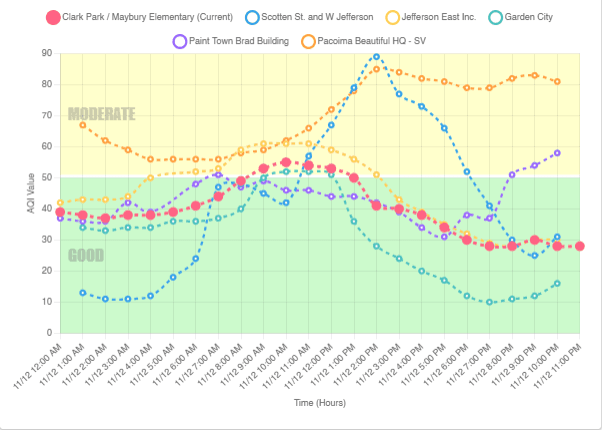
Graphs
Old Design Findings
Pollutant Row
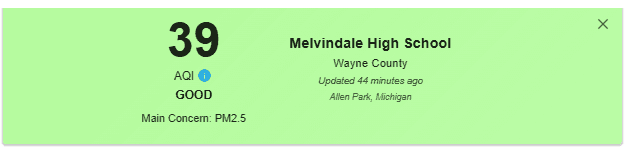
Header
The Redesign

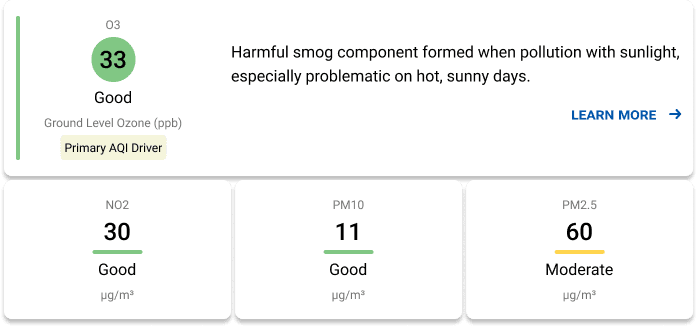
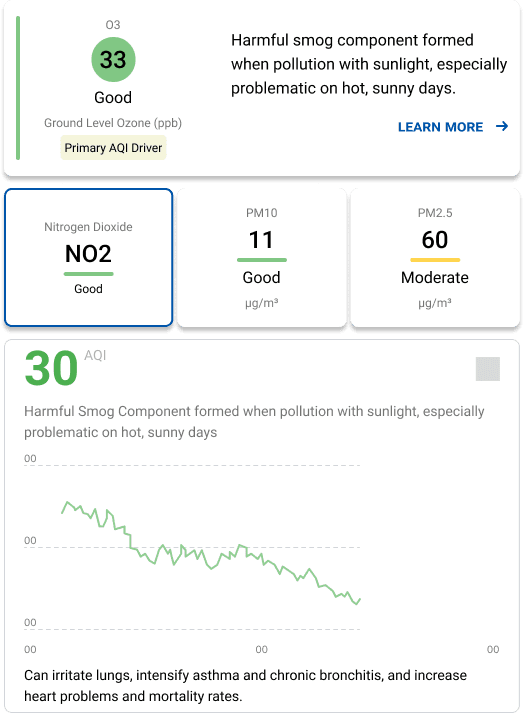
Redesign of Pollutant Row
Clear Primary AQI Driver Placement
Clarity
Visual Hierarchy
Status Communication
Education
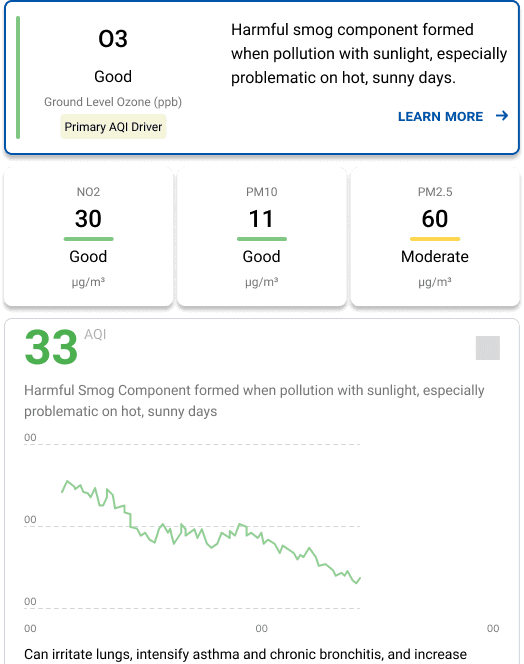
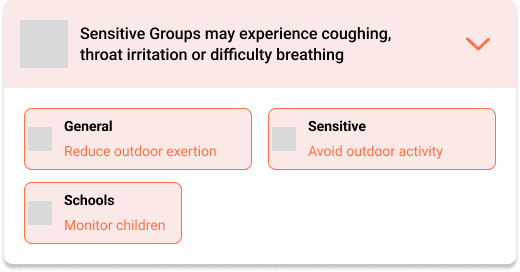
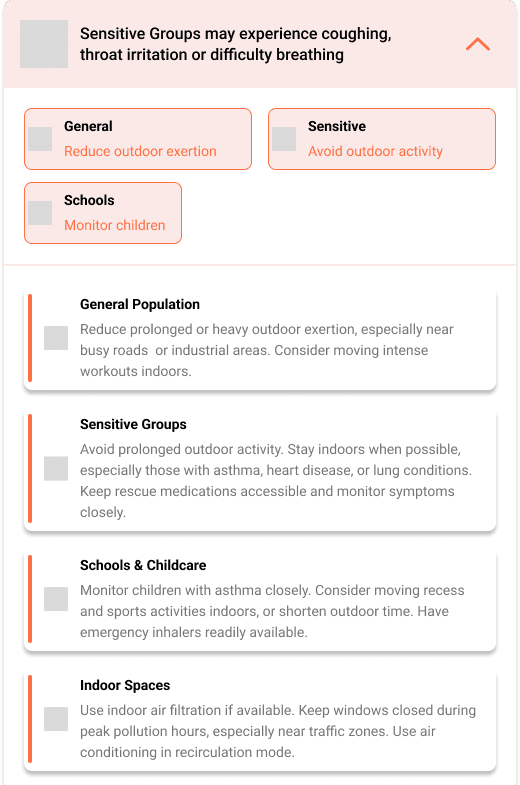
The main AQI-driving pollutant now sits at the top of the row, highlighted with clear status text and more space for a short description.
There’s also room for a “Learn More” button that can link to external resources for deeper explanations.
Redundant Visual Cues for Accessibility
Accessibility
Redundant Cues
Status Labeling
Every pollutant card now has both color indicators and text labels (like “Good,” “Moderate,” “Unhealthy”).
This provides redundant ways to understand status, so even users with color-vision deficiencies can easily interpret it.
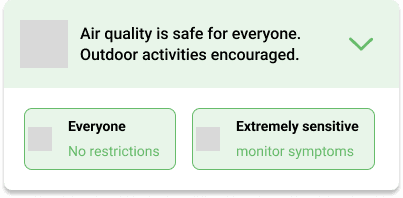
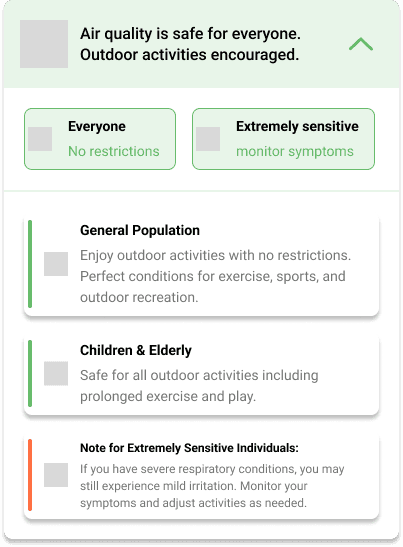
New Addition
Old Design Findings
Compare Monitors Tab
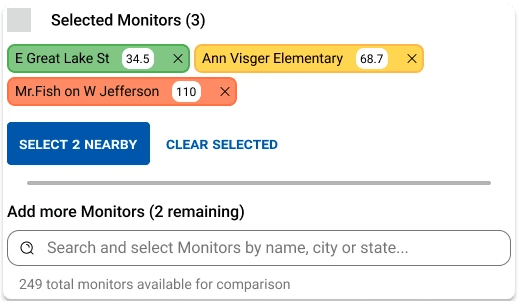
Expanded Compare Monitors
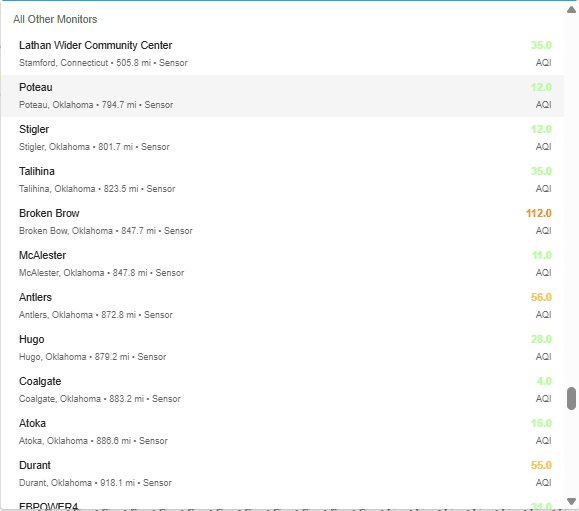
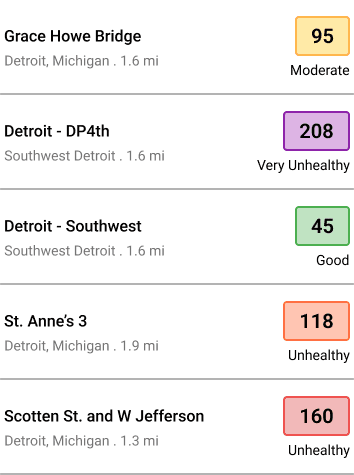
Monitor Search Results
New Design
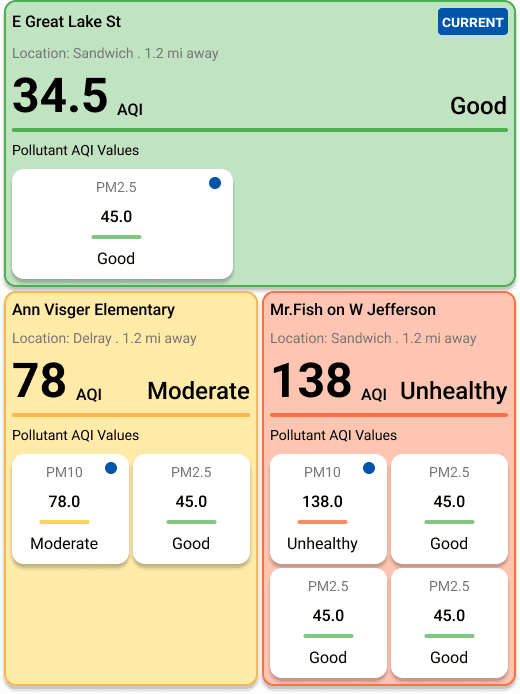
Redesign Compare Monitors Tab
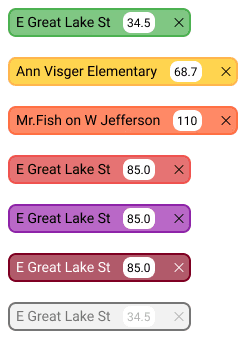
Updated Color Palette
Updated Search Results
Graphs
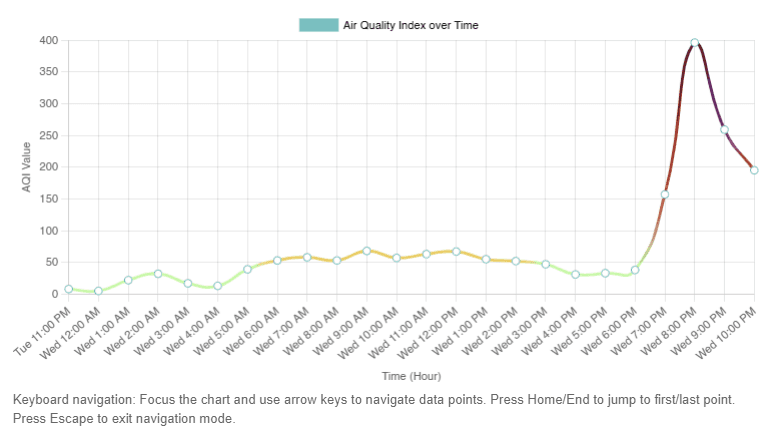
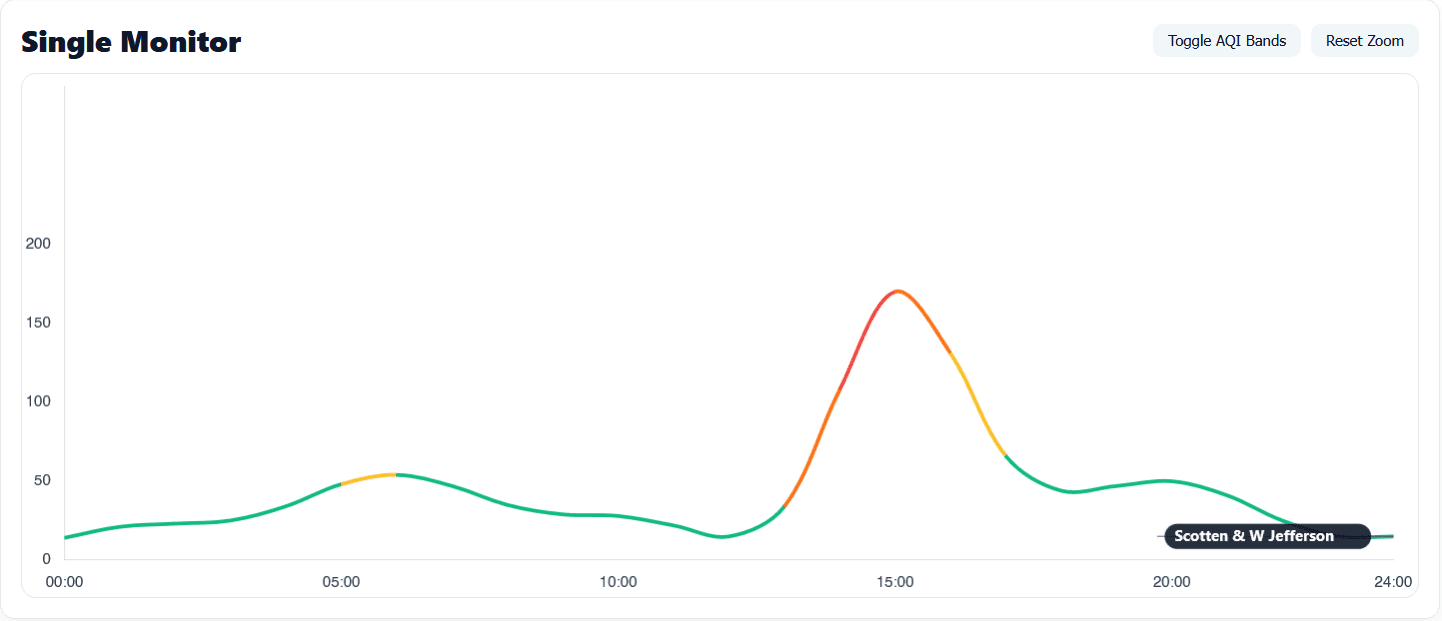
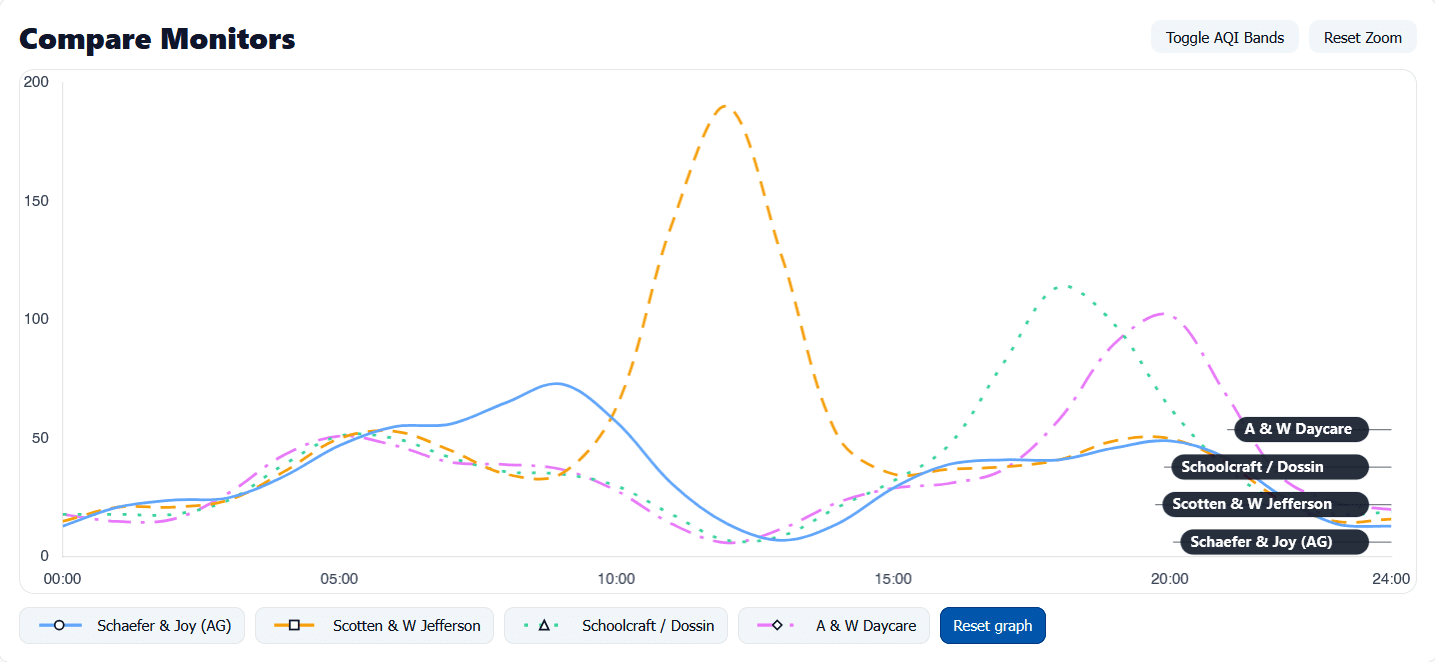
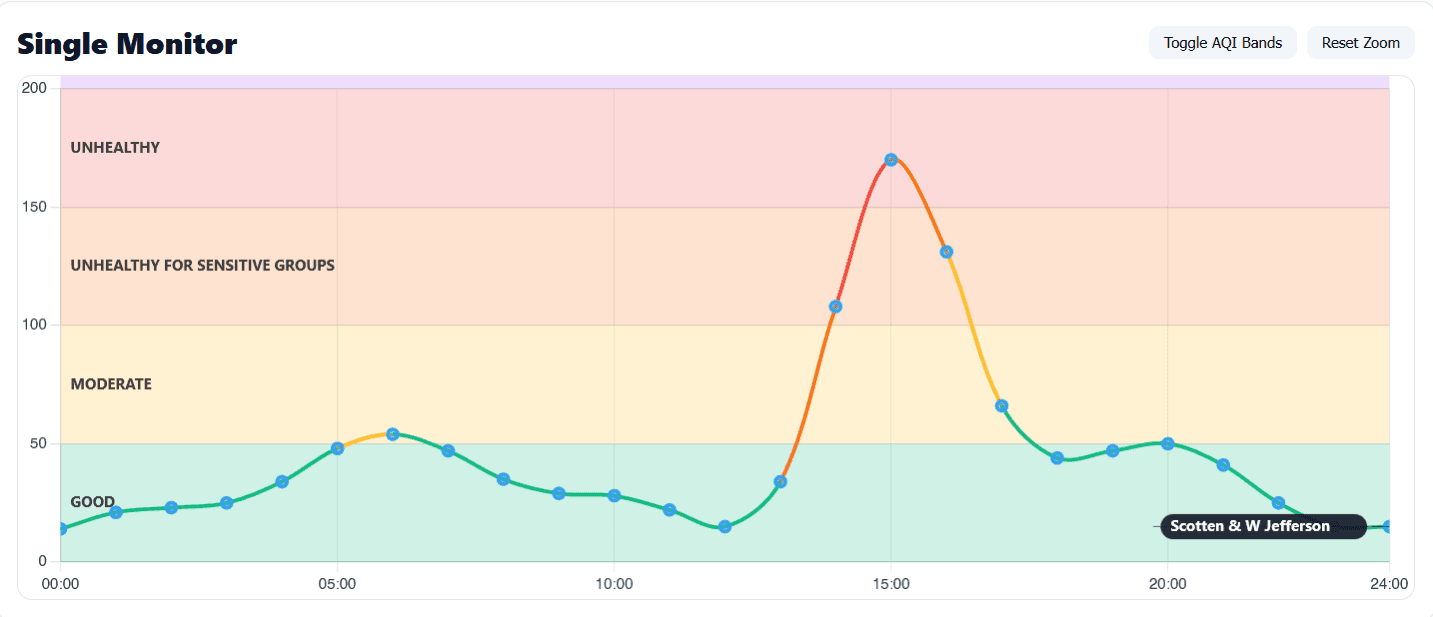
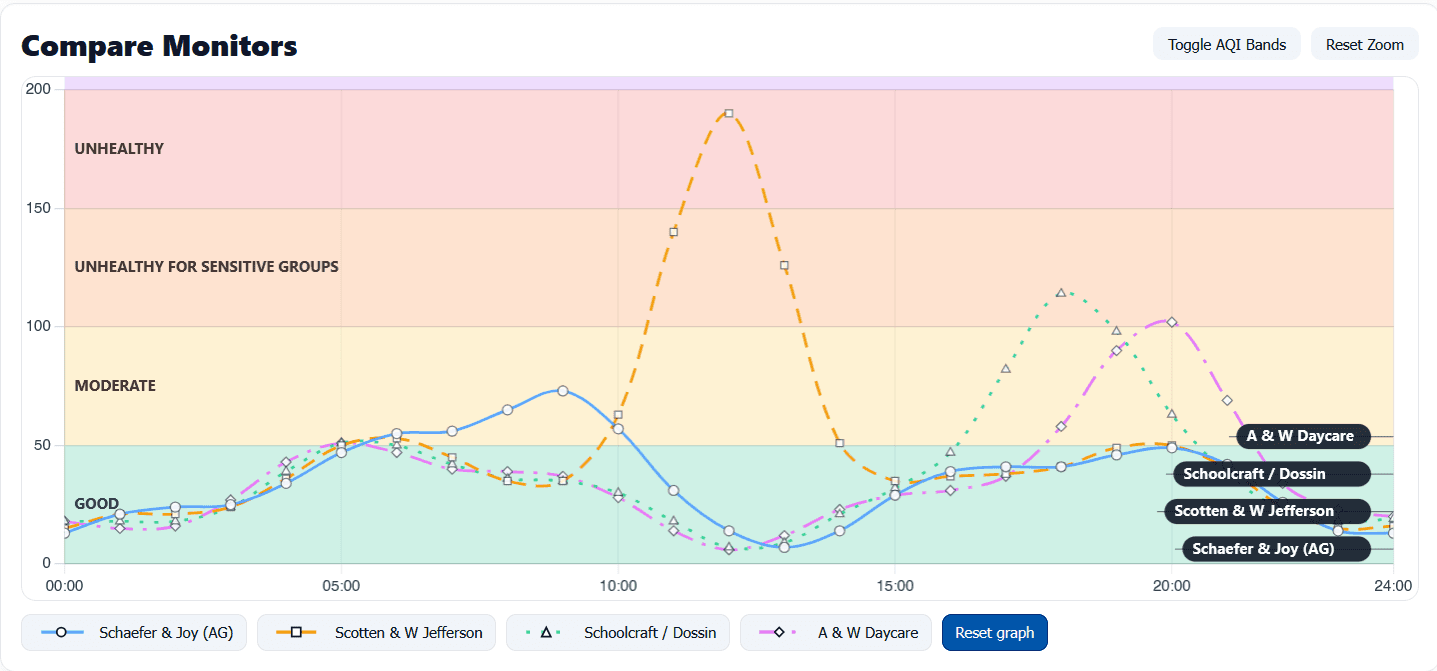
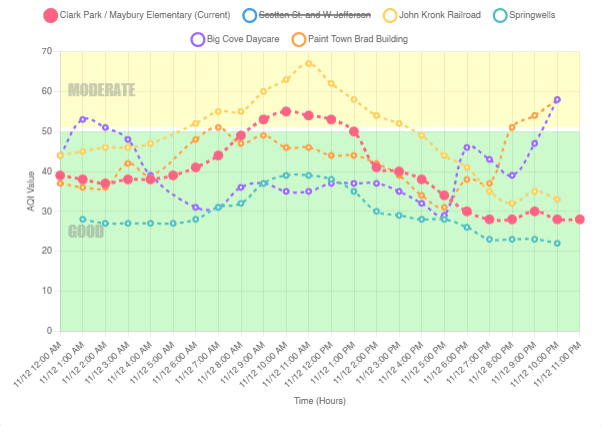
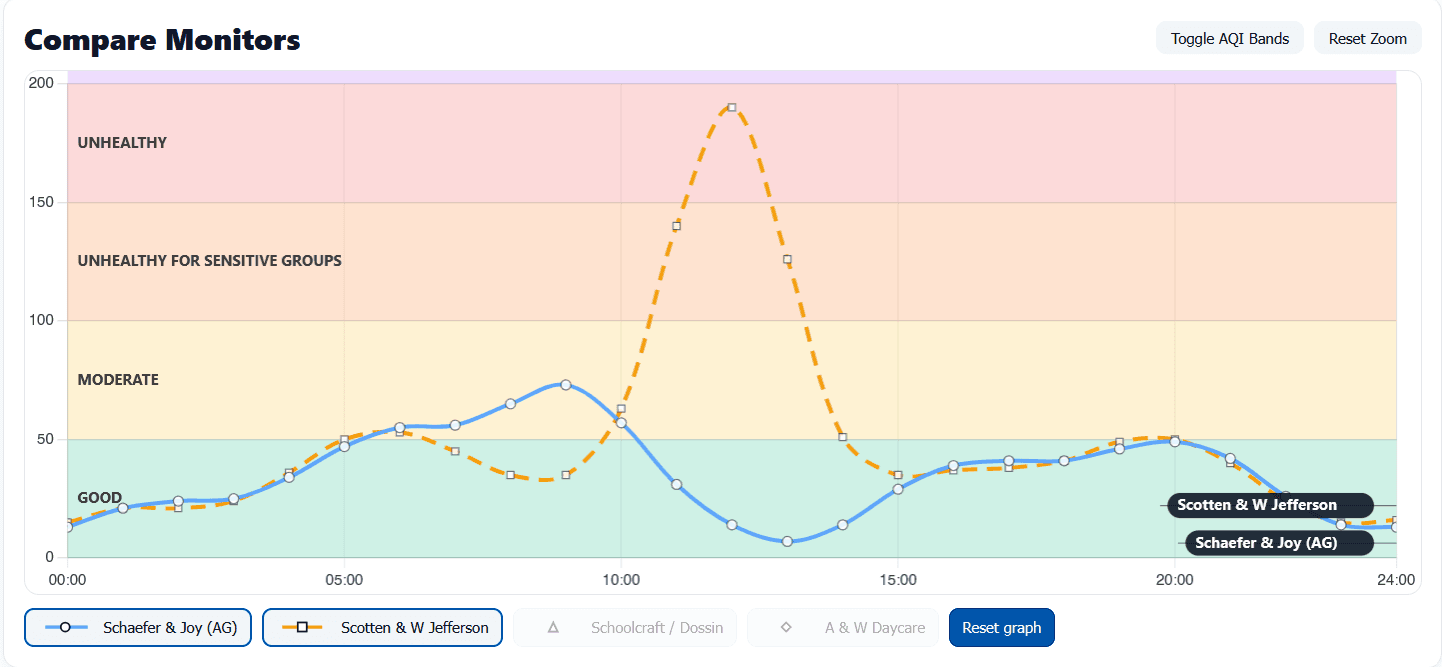
Improving Graph Accessibility and Consistency
We currently use two types of charts across the JustAir platform
the default view and
the compare charts.
Both share similar usability and accessibility issues:
Default View
Compare Monitors View
The Redesign
Redesign Default View
Redesign Compare Monitors View
Redesign Default Hover/Click View
Wind Information Panel
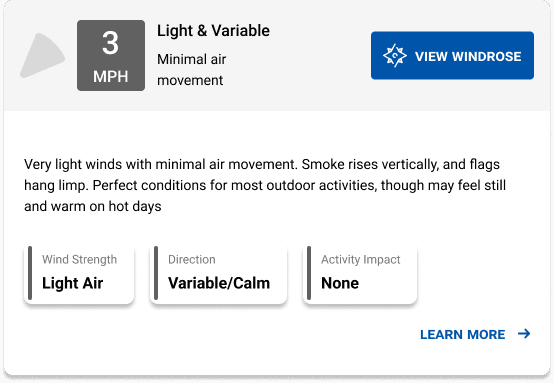
I wanted to find a balance between presenting enough wind information and keeping it easy to understand at a glance.
Wind roses were a required element, but showing a full traditional wind rose upfront can feel overwhelming or confusing for many users.
The goal was to offer clarity for people who are new to this kind of data while still providing the depth that more experienced users expect.
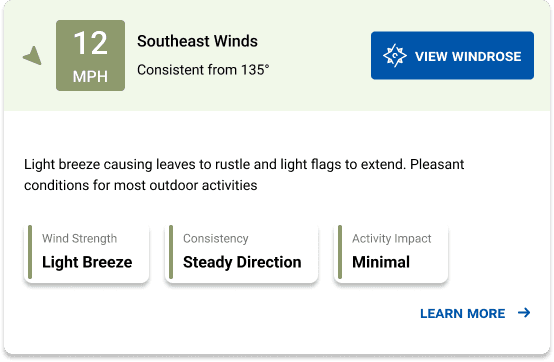
Wind Information Panel
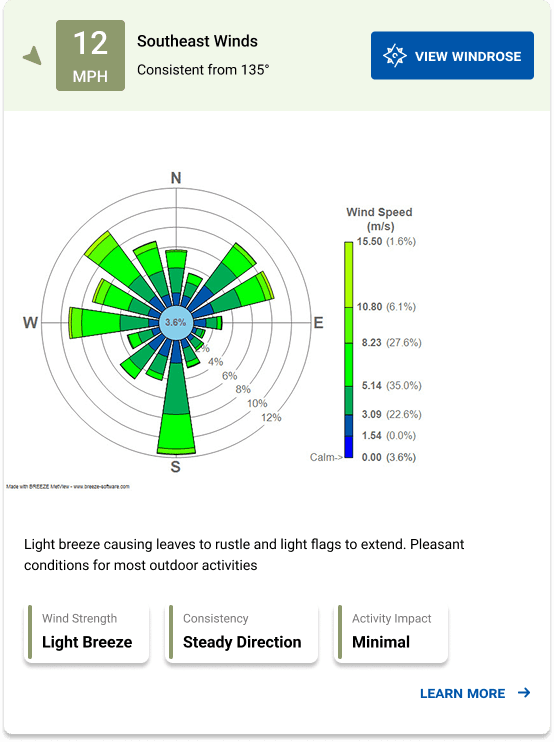
Expanded Wind Information Panel
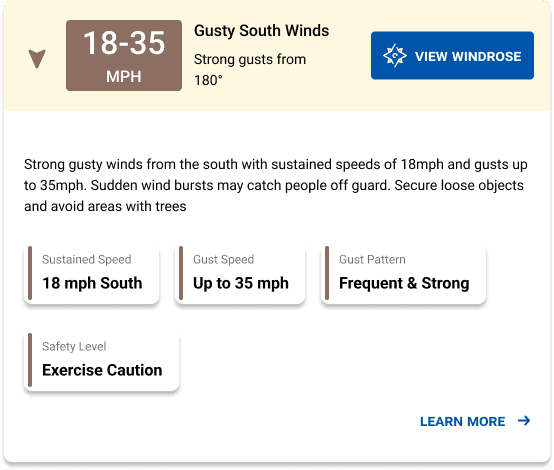
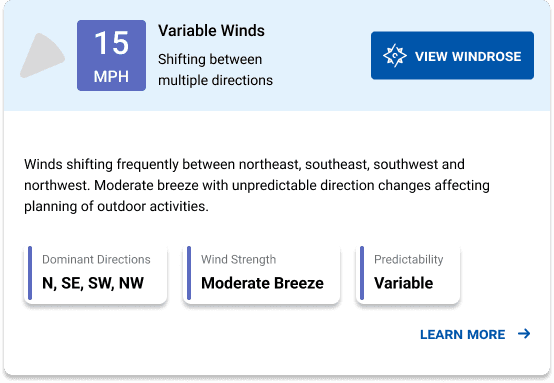
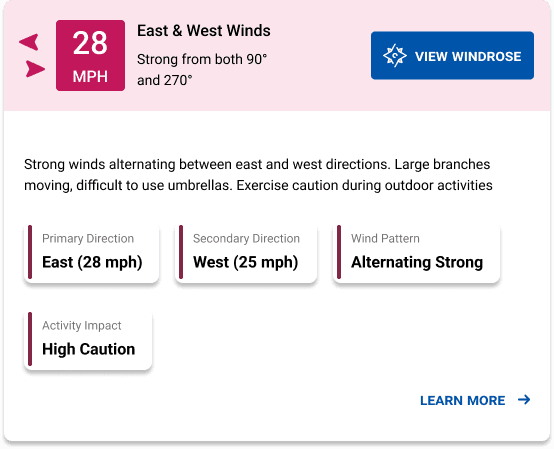
The dashboard shows wind speed and direction upfront, along with a brief contextual message to help users quickly understand current conditions. Additional details about wind behavior appear beneath that, and a button gives users the option to open the full wind rose if they want deeper insights. This structure supports both quick scanning and more advanced exploration, helping users understand real wind patterns that aren’t immediately obvious.
I believe this layout helps users gradually learn how to interpret wind roses by connecting them to the surrounding context. It encourages interactive learning, allowing users to explore and compare patterns to better understand real-world wind behavior. Over time, users can develop the confidence to read wind roses on their own, even without relying on the supplemental explanations.
Below are the different types of wind dialog cases I considered, including edge cases where multiple winds blow with similar strength. The goal here is to make sure the panel covers typical conditions and those less obvious, balanced cases.”
Global UI Improvements
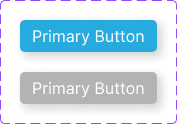
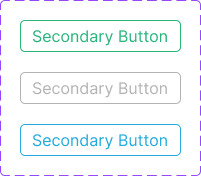
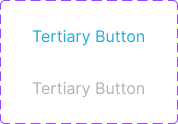
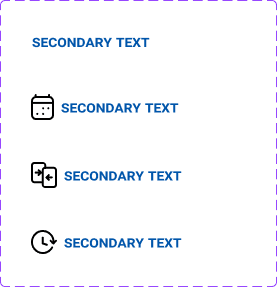
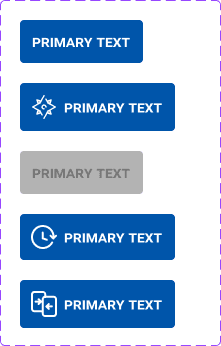
I updated the dashboard’s primary blue to # 0055AA to preserve the JustAir look while passing contrast on light and white surfaces. I wanted to keep the brand hue, so I searched for a nearby blue that meets WCAG AA; this hit the balance between familiarity and legibility.
From there, I rebuilt the design system.